Dashboard
The Dashboard is the first screen you land on when you open Amazon Seller Sync. It answers two questions quickly: how much of your catalogue is connected to Amazon, and when the app last spoke to Amazon on your behalf.
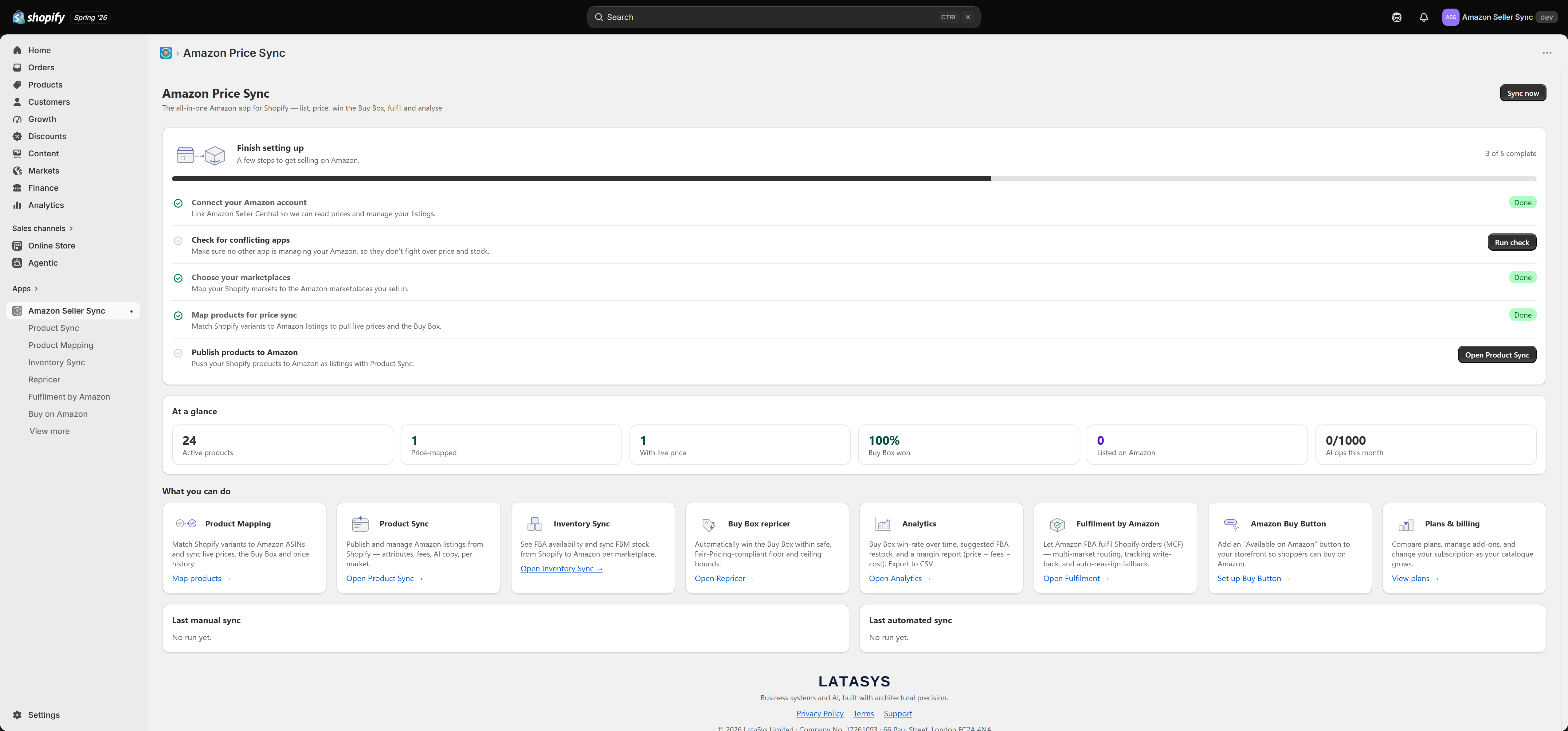
At a glance
The tiles across the top count your catalogue's relationship with Amazon. They refresh every time you open the page.
Active products is the number of active products in your Shopify catalogue, in other words the products the app considers eligible to work with. Drafts and archived products are not counted.
Price-mapped is the number of Shopify variants linked to an Amazon ASIN (an ASIN is Amazon's own product identifier). These are the variants that price sync looks up on Amazon. If this is zero, price sync has nothing to do and most of the app will look empty. You create these links on the Product Mapping page.
With live price is the subset of those mapped variants for which the app has actually retrieved and stored an Amazon price. It is normal for this to sit below Price-mapped, because a mapped variant only gets a price after the first sync run that reaches it, and because some ASINs have no New offer on Amazon at that moment. A large and persistent gap is worth investigating.
Buy Box won is shown as a percentage. It is the share of your mapped products that were holding the Buy Box (the "Add to basket" position on the Amazon product page) at the most recent reading. It is a headline number only. For the trend over time, use the Buy Box performance report.
AI ops this month shows how many AI actions you have used against your plan's monthly allowance, for example 12 of 50. The allowance resets each month. If you have added your own API key in Settings, your provider bills you directly and the cap does not apply. See AI tools.
Sync now
Sync now runs an immediate price sync across all of your mapped products, without waiting for your plan's scheduled run.
The button is disabled until you have connected an Amazon account. If it is greyed out, that is why. Connect an account under Settings > Amazon account and it becomes available.
When the run finishes, a banner appears reading "Updated {n} price(s), {n} skipped, {n} errors". Skipped generally means the app had nothing new to write for that variant. Errors mean the lookup failed at Amazon's end, and a large error count is worth chasing.
Tip
Press Sync now after mapping a batch of new products, rather than waiting hours for the next scheduled run to pick them up.
Last manual sync and Last automated sync
Two run cards sit below, and they are easy to confuse. Last manual sync is the last time somebody pressed Sync now. Last automated sync is the last time the scheduled sync ran by itself, on your plan's interval.
Read them together. If Last automated sync is stale, or blank when you expect it to have run, the schedule is not firing. The usual reasons are that no Amazon account is connected, that the app is missing a Shopify permission, or that your plan's interval is longer than you assumed. The read-only Automation tab in Settings shows the scheduled sync state, the schedule itself, and warns you if a Shopify scope is missing.
Finish setting up
Until you are fully set up, a four step setup guide sits on the Dashboard:
- Connect your Amazon account
- Check for conflicting apps
- Choose your marketplaces
- Map products for price sync
Step 3 is the one that catches people out. It is only marked done when you explicitly save a market mapping under Settings > Markets. A marketplace the app inferred from your connected Amazon account does not count until you have saved the choice yourself.
Once all four steps are complete the guide shows "You're all set" and offers Hide setup guide, which clears it from the Dashboard for good. See Setup checklist.
If something looks wrong
Empty tiles and a stale automated sync both have common causes. Start with Troubleshooting.