Setup checklist
The Finish setting up card sits at the top of the Dashboard and tracks four steps. It is not decoration. Each step is checked against the real state of your store, so a step ticks itself the moment the underlying condition is true, and it will not tick simply because you visited the page.
This article covers what each step does and, more importantly, precisely what makes it count as done. If your checklist looks stuck, the answer is almost certainly in the section on step 3.
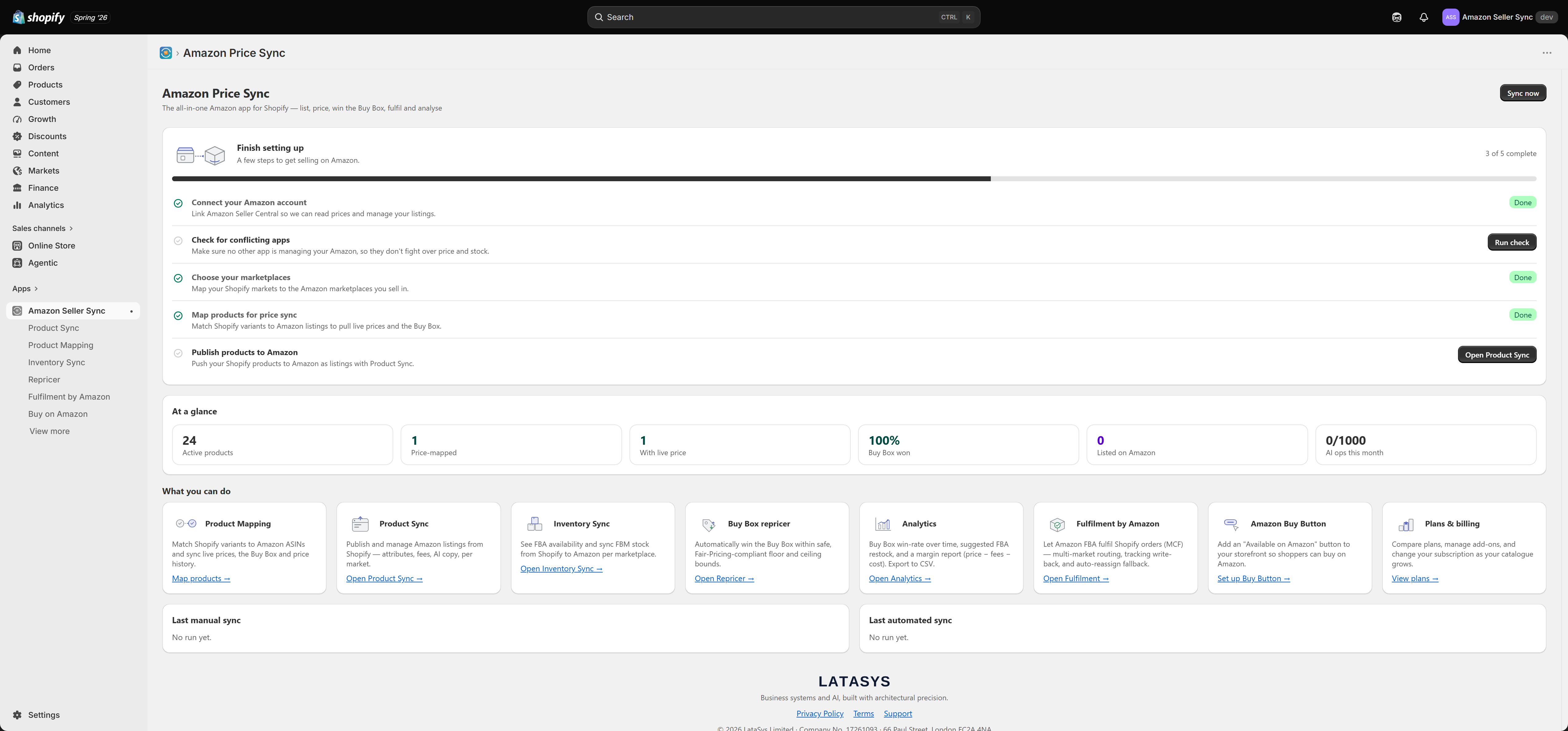
Step 1: Connect your Amazon account
Choose your Amazon region (North America, Europe or Far East) and authorise the app in Seller Central. On return, the app discovers which marketplaces your account may sell in.
Marked done when: at least one Amazon account is connected.
This is the only step that is a genuine prerequisite for the others. Without it, price sync has nothing to read and Sync now stays disabled.
Full detail: Connecting Amazon Seller Central.
Step 2: Check for conflicting apps
The app scans your store for other Amazon apps, because two apps writing to the same products will make price and stock flap back and forth. If one is found, you tick which of the four functions it handles, disable them in that app, then recheck.
Marked done when: you have acknowledged the check. That means either the check found nothing, or you worked through the modal and confirmed. It is a warning rather than a hard block, so you can override a persistent detection and continue.
Full detail: Check for conflicting apps.
Step 3: Choose your marketplaces
This is where you tell the app which Amazon marketplace is your default (home) marketplace, and, on paid plans, map individual Shopify markets to specific Amazon marketplaces. The home marketplace drives automated price sync and the home price, and it is what the storefront blocks fall back to. You set all of this on the Markets tab in Settings.
Marked done when: a market mapping is explicitly saved.
That sentence is the single most important line on this page, so read it again carefully.
Why this step looks stuck
When you connect an Amazon account, the app already knows your authorised marketplaces, and it can infer a sensible default from them. So the Markets tab may already look correct: your home marketplace is showing, and it is the one you would have picked anyway.
An inferred default does not complete the step. The checklist is looking for a mapping you actually saved, not one the app worked out on your behalf. Until you open Settings, go to the Markets tab, and save, step 3 stays open, and so the checklist never reaches "You're all set".
This is by far the most common reason merchants think the setup guide is broken.
The fix takes about ten seconds.
- Open Settings and select the Markets tab.
- Set your default (home) marketplace. If the value you want is already shown, that is fine, but you must still save it.
- Add any per-market overrides your plan allows.
- Save.
Step 3 will now tick.
Note
Per-market overrides are plan-limited. Free gets none, so on Free you set the default marketplace only and that is all you need to save. Growth allows 3 overrides, Growth + Markets 10, and Full effectively unlimited.
Full detail: Market mappings.
Step 4: Map products for price sync
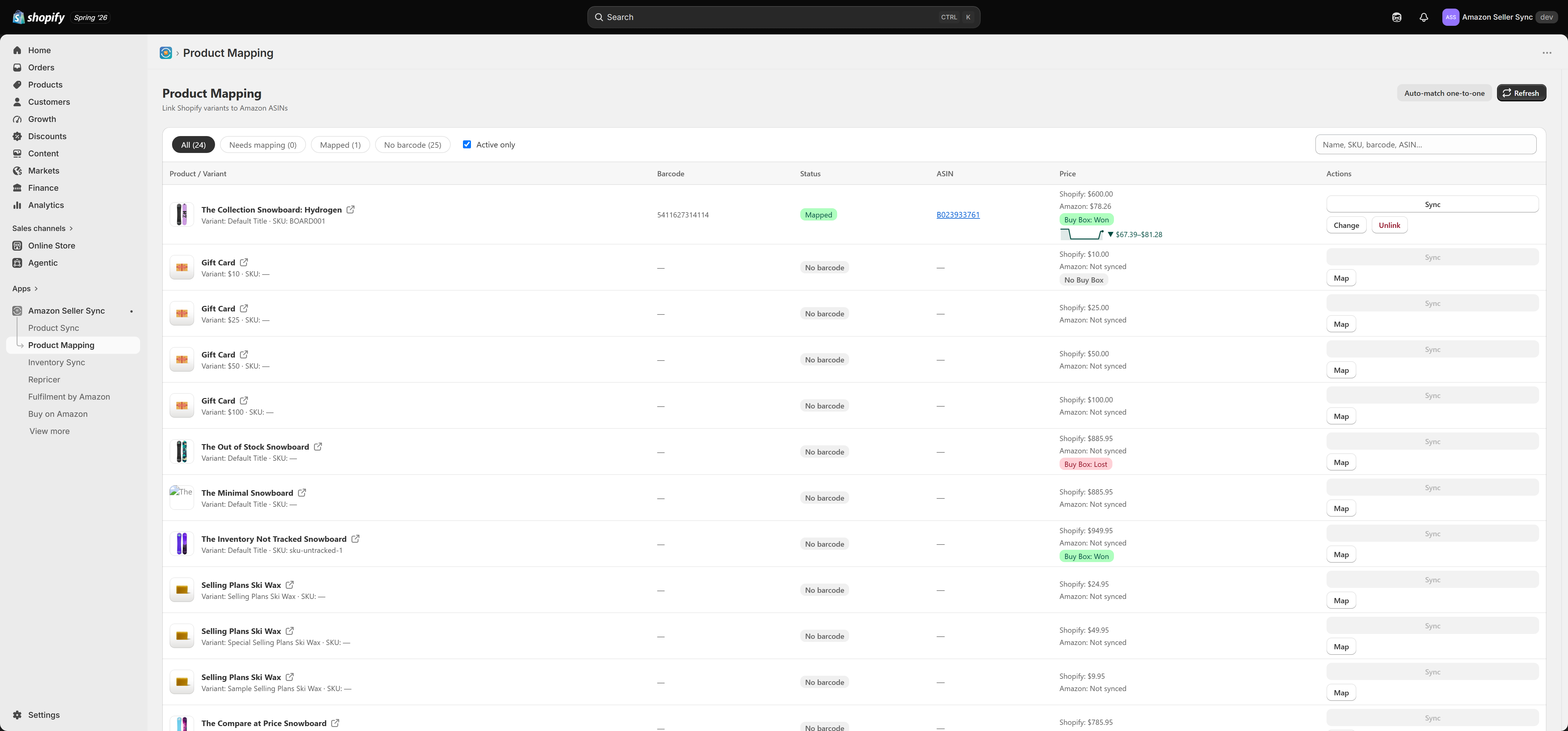
Link Shopify variants to Amazon ASINs on the Product Mapping screen, so the app can pull live Amazon prices and Buy Box status back into your store. You can use Auto-match one-to-one, which matches by barcode only, or map products by hand using the Map modal, which searches Amazon by barcode, ASIN or product name.
Marked done when: at least one product is mapped. One is enough. You do not have to finish your whole catalogue to clear the step.
Full detail: Product Mapping.
This is the last step. Once at least one product is mapped, the checklist is complete.
"You're all set"
When all four steps are complete, the card changes to say You're all set and offers Hide setup guide.
Hiding the guide only removes the card from the Dashboard so you get your screen back. It does not switch anything off, and it does not undo any step. The space is then given over to the At a glance tiles and the two run cards showing your last manual sync and last automated sync.
Note
Every step on this checklist can be completed on the Free plan. Price sync, Product Mapping, the Buy on Amazon button and Fulfilment by Amazon all work on Free, so there is no step here that quietly requires you to pay.
If a step still will not tick
- Step 1 will not tick. The authorisation did not complete. Try Reconnect from Settings, and check you are signing in to a Seller Central account in the region you selected.
- Step 3 will not tick. You have almost certainly not saved a mapping. See above. Open Settings, then Markets, then save.
- Step 4 will not tick. No variant is mapped yet. Auto-match only matches by barcode, and it skips any variant with no result or more than one result, so a catalogue without barcodes needs manual mapping.
More help: Troubleshooting.