Managing your plan
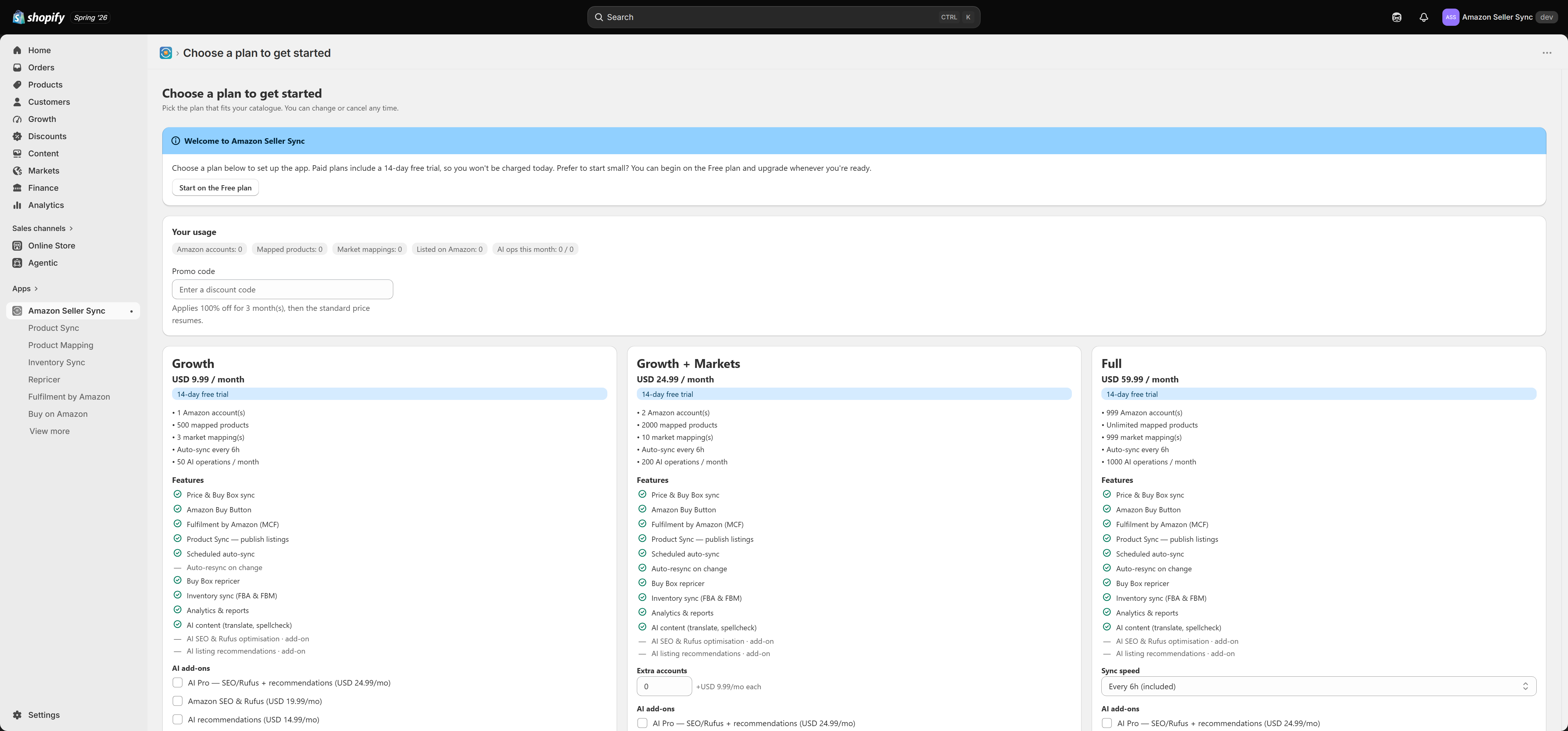
You can change plan at any time from the Plans page. Upgrades are simple and take effect immediately. Downgrades take a little more care, because your existing setup may be bigger than the plan you are moving to. This page explains exactly what the app does in each case.
The short version, and the thing most merchants want to hear first: nothing is ever deleted on Amazon. Your listings stay live, your ASINs stay yours, and your Seller Central account is untouched no matter what you do here.
Upgrading
Pick the higher plan on the Plans page and approve the charge in Shopify. The upgrade is immediate. Your new caps apply straight away, and the features the new plan unlocks appear in the navigation as soon as the app reloads.
Nothing about your existing setup changes. Your product mappings and your market mappings all carry over exactly as they were. A bigger plan only ever raises limits, so there is nothing to reconcile.
If you are on a 14-day free trial and you upgrade within it, you are simply moved onto the higher plan. Check the Plans page for how the trial applies.
Downgrading and the reconciliation flow
Moving to a smaller plan is the interesting case. Your current setup may exceed the new plan's caps: two Amazon accounts on a plan that allows one, ten market mappings on a plan that allows three, or more mapped products than the new plan permits.
The app does not guess which of those to drop, and it does not silently discard anything. Instead, the next time you open the app after the downgrade, an un-dismissable modal appears:
Your plan changed, let's fit your setup to it
You cannot close it or click past it, because the app needs a decision from you before it can carry on. This is deliberate. The alternative would be the app quietly choosing which of your Amazon accounts to cut, and that is not a choice it should make on your behalf.
What the modal asks you
Which Amazon accounts to keep. If you have more accounts connected than the new plan allows, you pick the ones to keep. The others are disconnected from the app. Disconnecting removes the app's access to that Seller Central account. The account itself, its listings and its inventory are completely unaffected.
Which markets to keep. If you have more market mappings than the new plan allows, you pick which ones survive. The rest are removed from Settings > Markets. This changes which Amazon marketplace each Shopify market takes its price from, and nothing more.
What happens automatically
Nothing is deleted, on either side. Anything that no longer fits the new plan is paused, not removed. Pausing is an app-side state. It means the app stops updating something. It never reaches into Amazon and takes anything down.
Mapped products over the cap keep working. Existing price-sync mappings continue to sync. You simply cannot add new mappings until you are back under the new plan's limit.
Paid features stop. Moving down to Free removes Inventory Sync, Analytics and the AI tools, so those screens stop working. Your Shopify product content stays exactly as you last saved it, because it lives in Shopify rather than in the app.
Once your choices fit the new plan, the modal clears and the app returns to normal.
Note
Downgrading pauses updates inside the app. It does not close, delete or suppress anything on Amazon, and it never could. If you want a listing gone from Amazon, close it in Seller Central.
Cancelling
Cancelling means moving to the Free plan. There is no separate cancel button that leaves you with nothing, because Free is a working plan rather than a dead end.
Choosing Free from the Plans page ends your paid subscription and runs the same reconciliation flow described above. If you are inside your 14-day free trial, you are not billed at all.
If you want to remove the app entirely, uninstall it from your Shopify admin. Uninstalling wipes the app's data for your shop. Before you uninstall, consider clearing the metafields the app wrote into your store, from Settings > Metafields using Remove definitions + data.
What the Free plan still gives you
Downgrading to Free is not the same as switching everything off. Free keeps:
- Price and Buy Box sync on your default (home) marketplace, running every 24 hours, plus unlimited manual Sync now runs from the Dashboard
- Product Mapping, including auto-match, up to 10 mapped products
- The Buy on Amazon button and the Amazon Price block on your storefront
- Fulfilment by Amazon (MCF), which is not plan-gated on any tier
What Free does not have is Inventory Sync, Analytics, AI content, and any per-market overrides beyond your single home marketplace.
For many merchants Free is a perfectly reasonable resting state: your Amazon prices still land in Shopify, your Buy Box status is still tracked, and your storefront still points shoppers at Amazon.
Where to go next
- Plans and billing for the full comparison and limits
- Usage and limits for what each cap does day to day
- Add-ons for raising a single limit without changing plan