Uninstalling
Uninstalling the app is straightforward, but the order you do things in matters. There is one piece of housekeeping that can only be done while the app is still installed, and if you skip it you cannot go back and do it afterwards.
Before you uninstall
If you want the Amazon data removed from your store
While it was running, the app wrote Amazon data into your Shopify store as metafields: prices, Buy Box status, Amazon links, price history, listing status. That data sits in your store, not in the app.
If you want it gone, remove it before you uninstall. Go to Settings > Metafields and use Remove definitions + data. This deletes the app's metafield definitions and the values stored under them.
Warning
This is the step people miss. Once the app is uninstalled, Shopify revokes its access to your store, and the app can no longer reach in to clean anything up. Whatever it wrote stays written. There is no way to trigger the cleanup from outside, and reinstalling purely to run it is an awkward way to solve the problem.
If you are only pausing your Amazon selling and expect to come back, leaving the data in place is perfectly reasonable. It does no harm, and your price history survives.
If you want your Amazon listings closed
Uninstalling does not close your Amazon listings, and the app cannot close them for you. It does not manage your Amazon listings.
If you want your listings off Amazon, close or delete them in Seller Central. That is where they live, and it is where they stay after this app is gone.
If you are using Fulfilment by Amazon
If Amazon is currently fulfilling your Shopify orders through MCF, uninstalling stops that. Any orders already sent to Amazon will still be shipped by Amazon, but new Shopify orders will no longer be routed there, and the app will no longer pull tracking numbers back into Shopify.
Make sure you have somewhere for those orders to go. Move the relevant inventory back to your own Shopify locations before you uninstall, so orders route to a location that can actually fulfil them.
Uninstalling
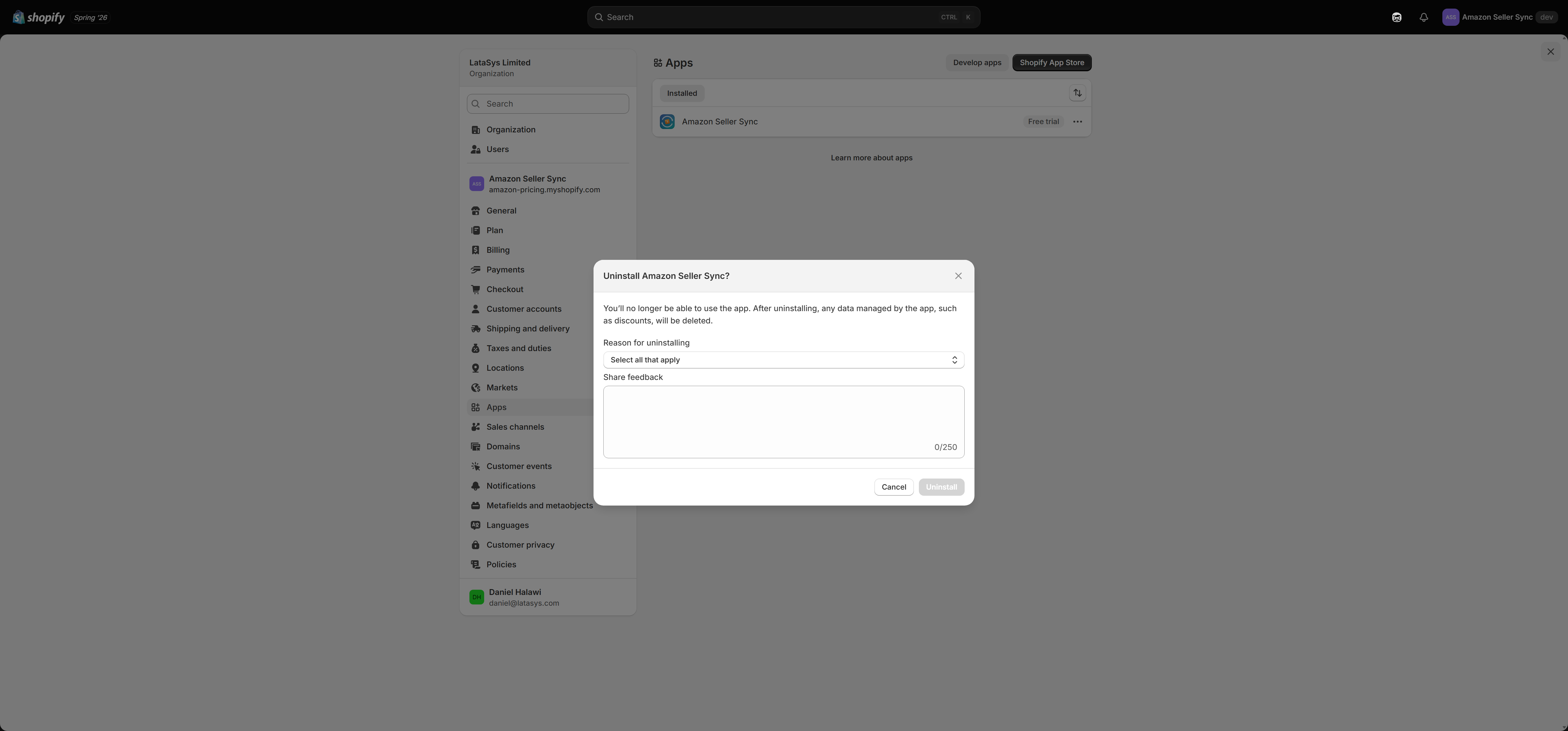
Uninstall from Shopify in the normal way: Settings > Apps and sales channels in your Shopify admin, find Amazon Seller Sync, and remove it.
Shopify notifies the app immediately. On receiving that notification the app wipes your stored credentials and all of its data for your shop. Your Amazon authorisation tokens, your AI provider key if you supplied one, your product mappings and your settings all go.
Billing stops with the uninstall. Shopify handles that; there is nothing to cancel separately.
What uninstalling does not do
It does not touch your Amazon listings. This is the most important thing to understand. Your listings stay live on Amazon, they stay sellable, and they remain entirely under your control in Seller Central. The app has no ability to reach Amazon after it has been removed, and it would not do so if it could.
Practically, that means orders will keep arriving on Amazon and you will need to fulfil them. If you did not intend to keep selling, close the listings in Seller Central.
It does not remove the Amazon fulfilment location from Shopify. If you set up Fulfilment by Amazon, the app registered a Shopify location named exactly "Fulfilled by Amazon (MCF)". That location remains in your Shopify admin after uninstall. It is inert, since nothing is driving it any more, but you can remove it manually from your Shopify locations if you want a tidy store.
It does not remove theme blocks. If you added the Amazon Price block or the Buy on Amazon button to your product template, those blocks remain in your theme. With the app gone and the metafields removed they will have no data to display, and they are built to hide themselves when there is no price and no URL, so shoppers will not see broken output. Even so, it is good practice to remove them from your theme editor.
It does not delete metafields on its own. As above, if you want them gone, use Remove definitions + data first.
Reinstalling later
If you reinstall, you start fresh. You reconnect your Amazon account, choose a plan again, and re-map your products. The app kept nothing.
If you left the metafields in place, your old data is still sitting in your store and your theme blocks will start displaying again once syncs resume. If you removed them, the app will re-create the definitions on install and begin building history from zero.